
How to Remove a Person from a Photo with AI
AI can remove a person from a photo by doing two jobs at once: it identifies the person you want gone, then rebuilds the part of the image that was hidden behind them. That second part matters most. A clean edit is not just an empty hole or a blurry patch. The background should still look like it belongs in the original scene.
This guide focuses on a prompt-based AI workflow. You upload a photo, describe who should be removed, and let the editor create a cleaned version of the image. It is useful for tourists, photobombers, passers-by, background crowds, product photos, event shots, and personal images where one person distracts from the final result.
You can try the workflow with the AI people remover.
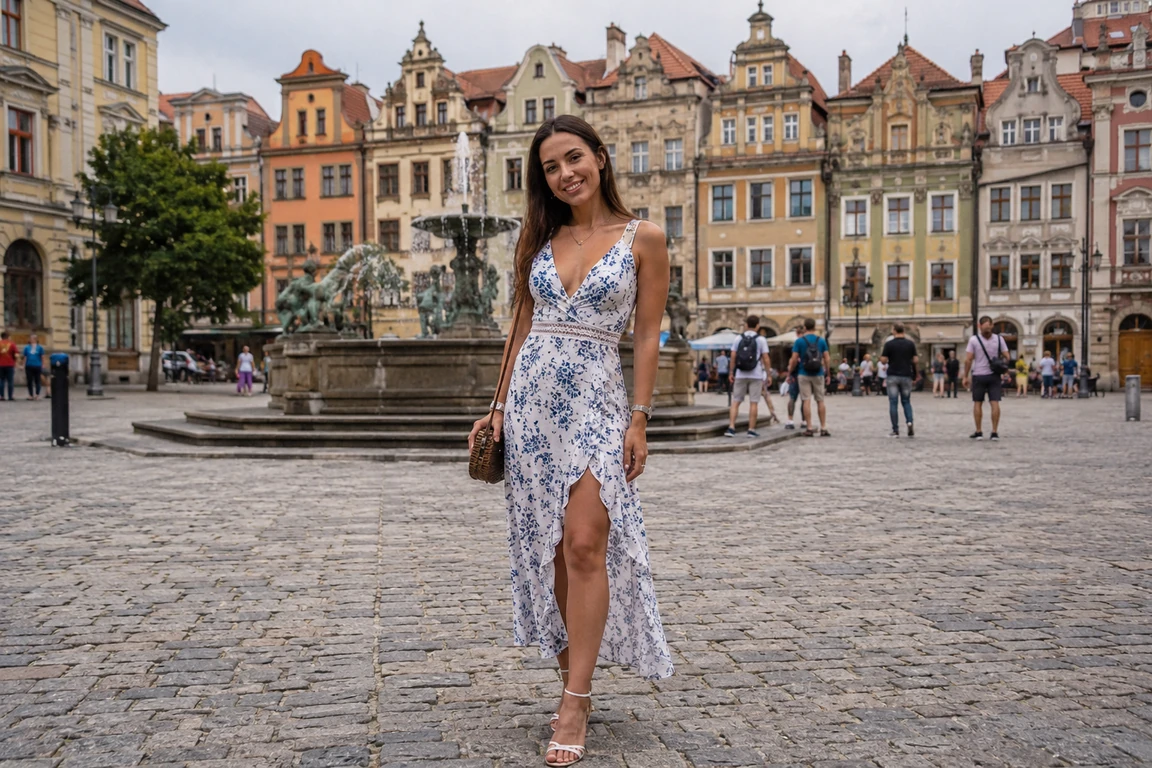
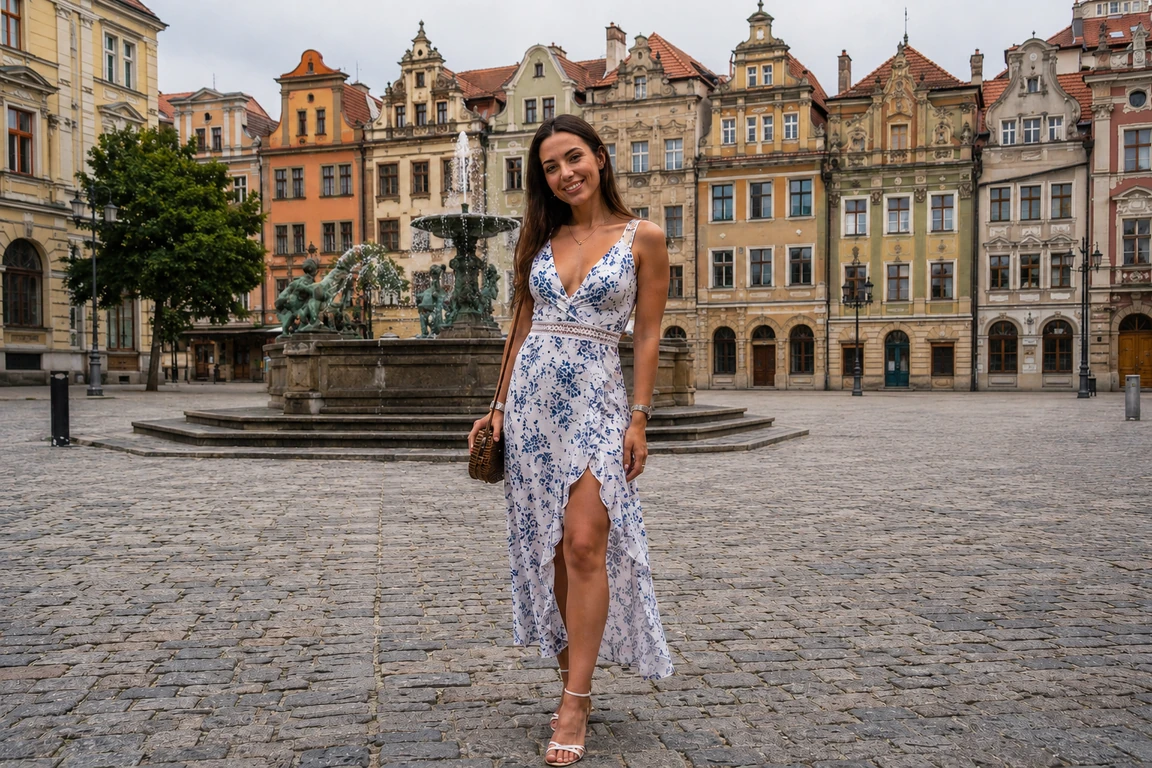
The Simplest Workflow
Start with the easiest version of the task: one unwanted person, clearly visible, not covering the main subject.
- Upload the photo.
- Describe the person to remove.
- Generate the cleaned image.
- Check the restored background.
- Download the result when it looks natural.
A good first prompt can be very simple:
Remove the tourist on the left side of the photo.
If the image has only one obvious distraction, that may be enough. The AI can usually infer that the main subject, landmark, product, or group should stay unchanged.
The same basic flow applies if you are trying to learn how to remove someone from a photo or how to remove a person from a picture. Start with one clear target before moving into crowded or overlapping scenes.
Prompt-Based AI vs Brush-Based AI
Many AI object removers use a brush. You paint over the person, adjust the brush size, try to cover the whole body, and hope the mask does not include anything important. That works, but it can be tedious when the person has hair, hands, shadows, bags, transparent fabric, or irregular edges.
Our workflow is prompt-guided. Instead of painting the whole person by hand, you describe the target:
Remove the person in the red jacket behind the couple.
That is useful in three common situations.
First, it is faster for casual edits. You do not need to zoom in and trace around every edge.
Second, it is easier when several people are in the frame. You can identify the person by position, clothing, or relationship to the main subject.
Third, it helps protect the parts you want to keep. You can say "keep the woman in front unchanged" or "keep the motorcycle and showroom floor natural" instead of relying only on a painted mask.
Brush tools still have a place when you need pixel-level manual control. But for most people-removal edits, a clear prompt is a simpler starting point.
That is the main difference between a brush-first editor and an AI person remover: the brush asks you to define the mask, while the prompt asks you to define the intent.
Tip 1: Start with Background People
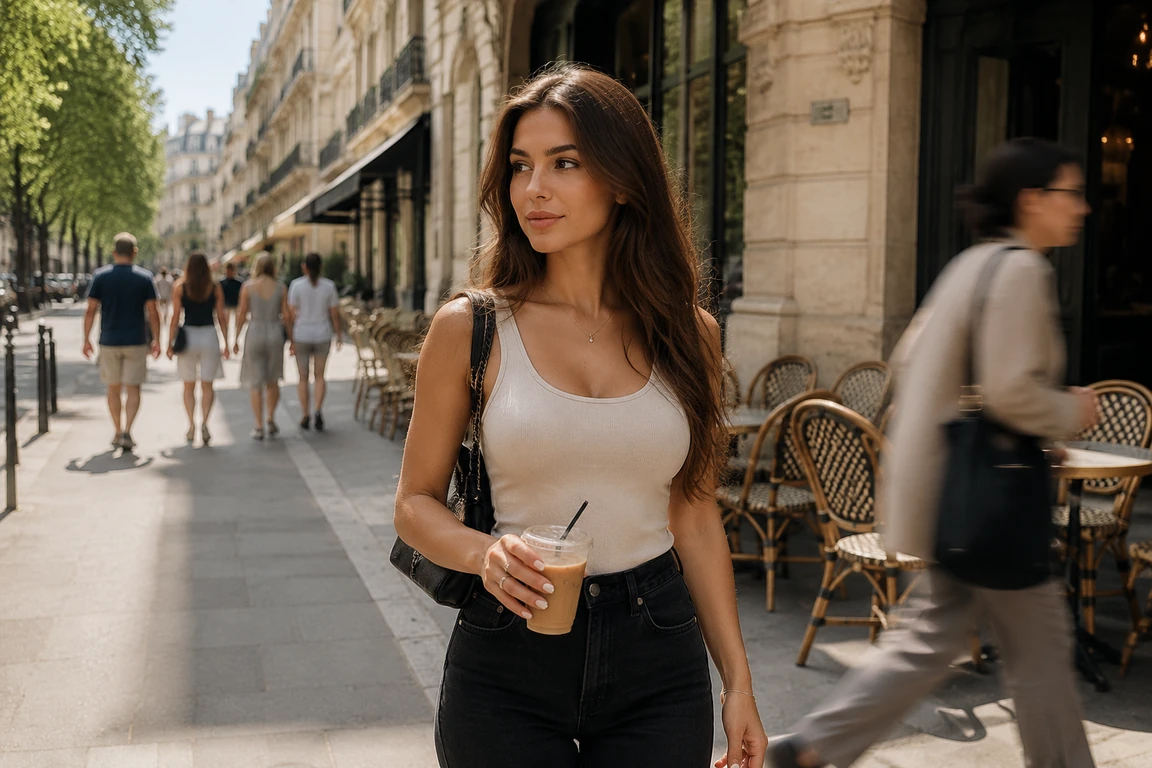
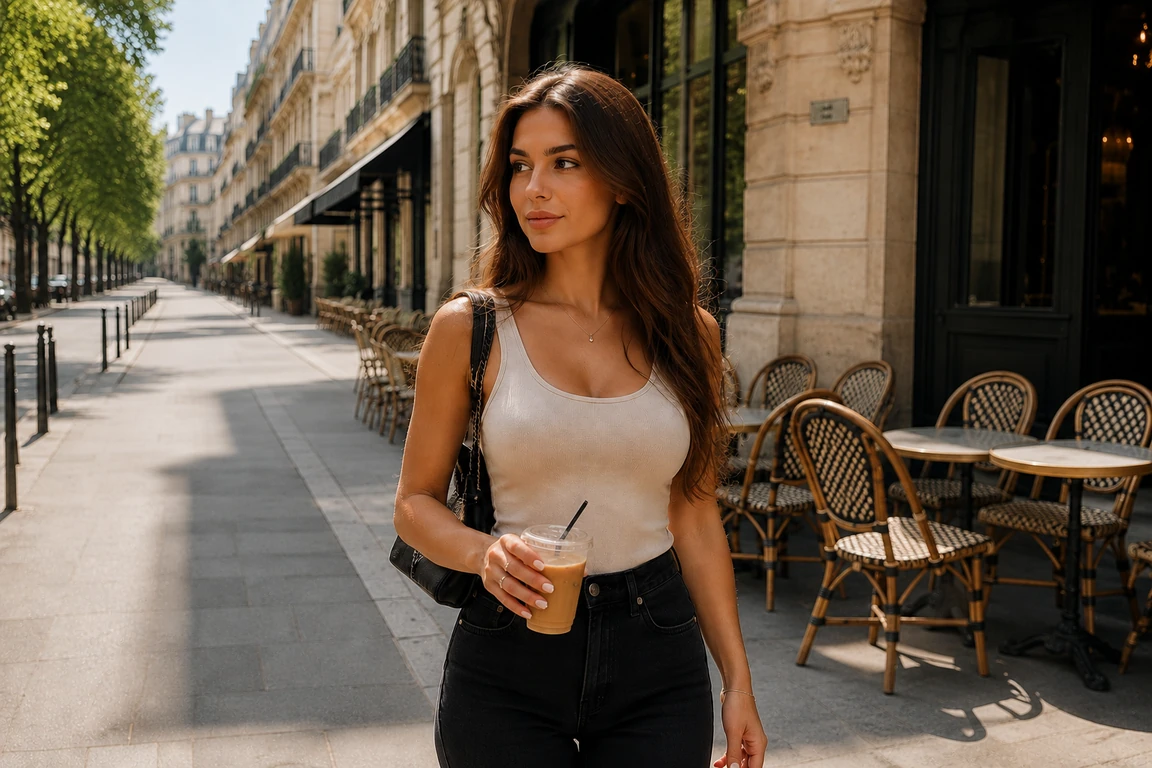
The easiest edits are usually small people in the background. They cover less detail, and the AI has more surrounding context to rebuild the missing area.
Use prompts like:
- Remove the person walking in the background.
- Remove the tourist near the left edge.
- Remove the people behind the main subject.
After generation, check the restored area for obvious blur, repeated texture, or strange shadows. If the result looks almost right but not clean enough, try a more specific prompt instead of changing the whole request.
This is also the most natural place to learn how to remove people from photos without cropping, because the background has enough visible detail for the AI to continue the scene.
Tip 2: Identify One Person Inside a Group
The task gets harder when the photo includes several people and you only want one of them removed. In this case, avoid vague prompts like "remove him" or "delete that person." The AI needs a clear target.
Describe the person using visible details:
- Location: left, right, center, foreground, background.
- Clothing: blue shirt, white dress, black hat, red jacket.
- Pose: sitting, standing, walking, leaning.
- Relationship: behind the bride, next to the car, beside the main subject.
For example:
Remove the man standing on the far right, but keep the rest of the group unchanged.
This kind of instruction does two things. It tells the AI who to remove, and it tells the AI what not to disturb.
If your main question is how to remove someone from a picture with several people in it, this is the key habit: describe the exact target and the people who should remain.
This also helps when you need to delete people from pictures but keep one or two important subjects in the frame. A removal prompt should always make the "keep" part as clear as the "remove" part.
Tip 3: Preserve the Composition Instead of Cropping
Cropping is tempting when a person appears near the edge of the image. But cropping can also remove the best parts of the photo: a landmark, a skyline, a full outfit, a product, or the spacing that makes the image feel balanced.
Use AI removal when you want to keep the frame. The goal is to clean the distraction while preserving the original composition.
A useful prompt here is:
Remove the people in the background and keep the building, street, and main subject unchanged.
That tells the editor the background still matters. You are not asking for a cutout. You are asking for the same photo with the unwanted people gone.
This is why AI cleanup is useful for anyone wondering how to remove people from pictures while keeping the full frame. You get to keep the scene instead of sacrificing it to a crop.
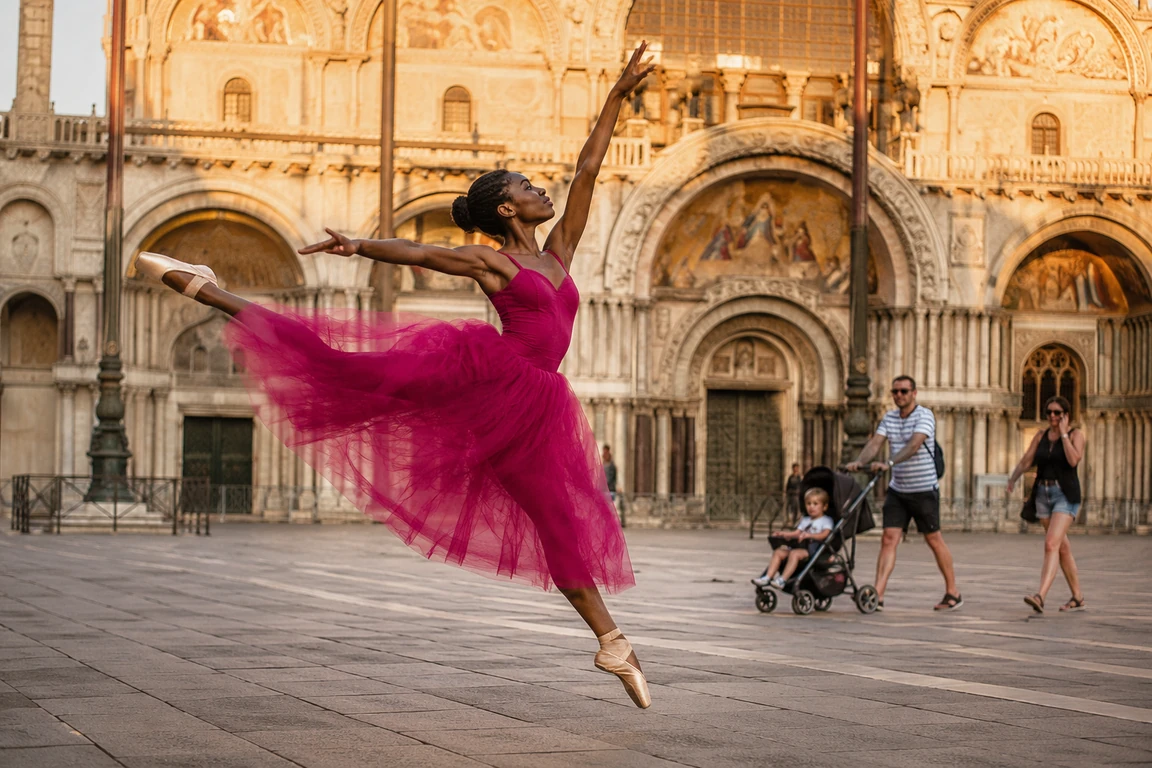
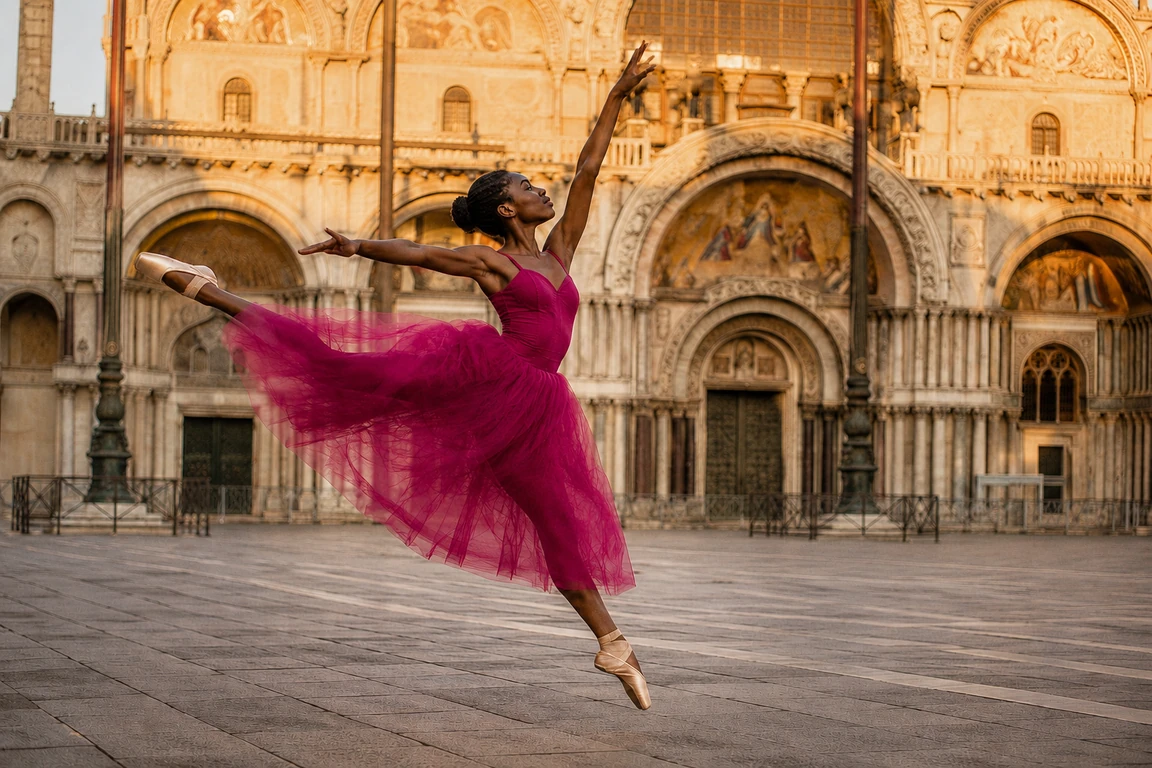
Tip 4: Be Careful with Overlapping People
Overlapping subjects are one of the hardest cases. If the unwanted person touches hair, hands, clothing, faces, or another body, the AI has to separate what should disappear from what should stay.
In these cases, your prompt should include both sides of the edit:
Remove the person on the left, but keep the seated friends and the tiled stairs unchanged.
The second half is important. It gives the model a preservation target, not just a removal target.
After the edit, inspect the contact areas. Look at shoulders, fingers, sleeves, hair edges, and shadows. These are the places where an imperfect edit is most likely to show.
This matters most when you remove someone from a photo where bodies overlap, because the edit has to protect the subject as well as rebuild the hidden background.


Tip 5: Help the AI Rebuild Texture and Shadows
A person often hides more than a flat background. They may cover pavement, grass, tiles, reflections, furniture, walls, stairs, or shadows. If the hidden area has a repeating pattern, the result needs extra attention.
When the background matters, include it in the prompt:
- Restore the brick wall naturally.
- Keep the floor pattern consistent.
- Rebuild the grass and shadow behind the person.
- Keep the street and building details realistic.
You do not need to write a long prompt every time. But when the first result looks smeared or inconsistent, adding background detail can help the next generation.
The same idea applies when you remove people from image files that have strong patterns or visible lighting direction. If you want to remove person from image areas cleanly, describe the texture, shadow, or surface that should come back.
Tip 6: Clean Product, Listing, and Marketing Photos
People removal is not only for travel photos. It also helps when a person appears in a product shot, vehicle listing, real estate image, marketplace photo, thumbnail, or ad.
For this type of edit, the object being sold or presented is the priority. The prompt should protect it directly:
Remove the person leaning on the motorcycle and keep the motorcycle, floor, and showroom lighting natural.
This is more precise than "remove person." It tells the AI that the product shape, reflections, and nearby surfaces need to stay believable.
If you are looking for an app to remove person from picture workflows, choose one that lets you explain the commercial object, not just mark the unwanted person. An app to remove a person from a photo is more useful when it can preserve product edges, floor reflections, and listing details in the same edit. The same standard applies to any app for removing person from photo distractions in product or listing images.
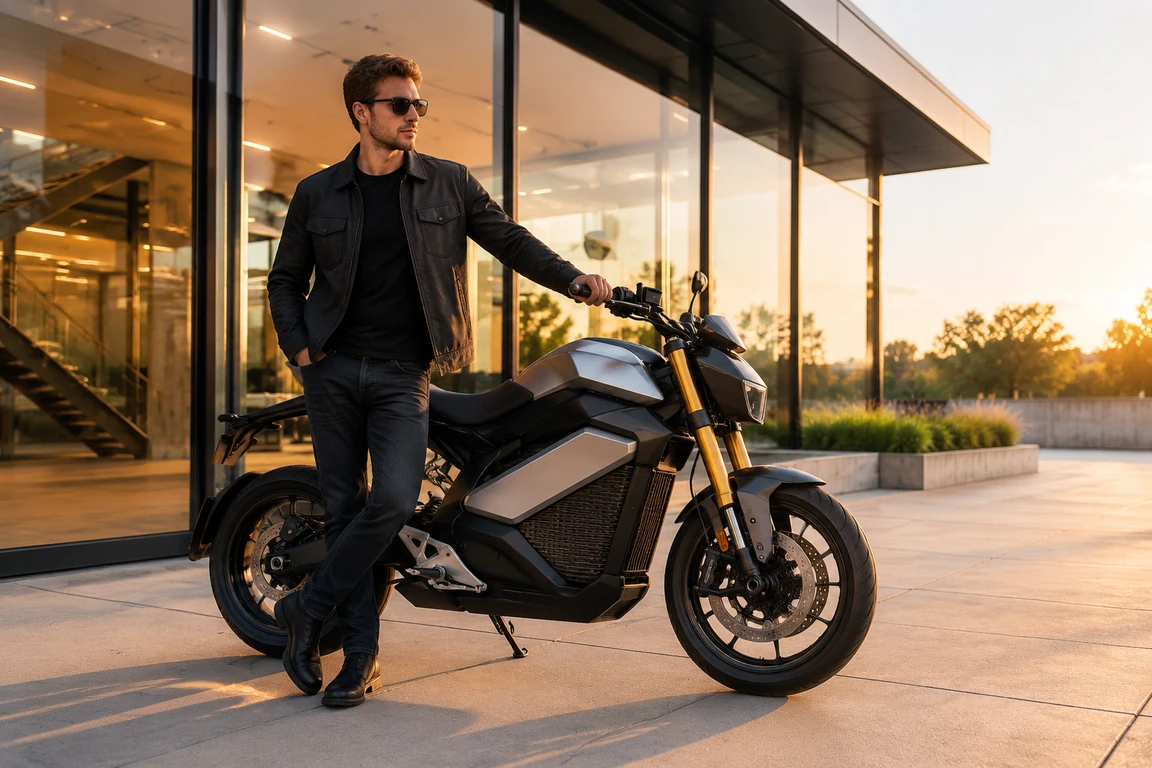
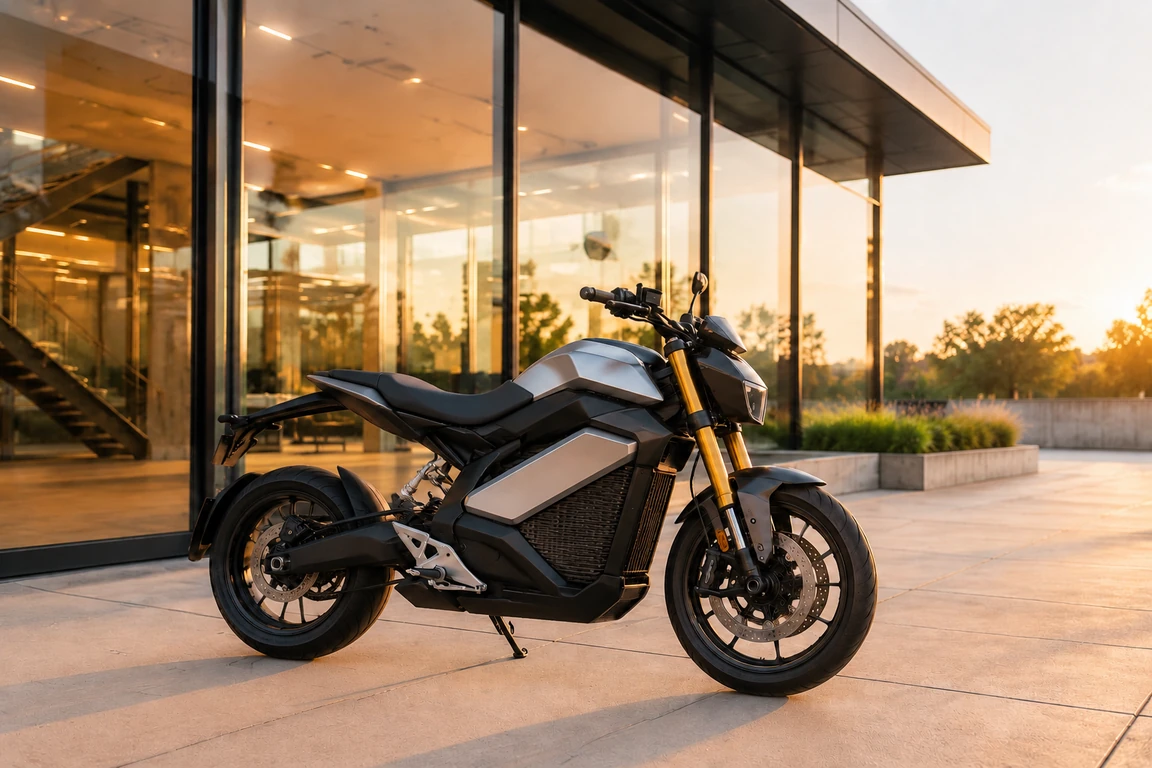
Tip 7: Know When to Try Again
AI image cleanup is fast, but the first result is not always the best result. Try again when:
- The wrong person was removed.
- The main subject changed.
- The restored background looks blurry.
- A shadow, reflection, hand, or edge looks unnatural.
- A pattern such as tiles, bricks, or railings does not line up.
When you retry, do not just repeat the same prompt. Add one useful detail:
- Specify the person's clothing.
- Mention the exact side of the photo.
- Tell the AI what should stay unchanged.
- Describe the background that needs to be restored.
Small prompt changes are often more effective than a longer prompt.
Good Prompts to Reuse
- Remove the tourist on the left and keep the main subject unchanged.
- Remove the person in the red jacket behind the couple.
- Remove the people in the background and keep the landmark natural.
- Remove the person leaning on the motorcycle and restore the showroom floor.
- Remove the photobomber behind the group without changing the people in front.
- Remove the person walking across the street and rebuild the pavement naturally.
- Remove the crowd behind the subject while keeping the original composition.
- Delete the person from the image and keep the background texture consistent.
- Erase the person from the photo but keep the subject's face, hands, and clothing unchanged.
FAQ
How do I remove a person from a photo?
Upload the image, describe the unwanted person clearly, generate the edit, and review the restored background before downloading.
How do I remove people from photos without cropping?
Use an AI editor that keeps the original frame and rebuilds the covered area after the unwanted people are removed. This works best when the background is still visible around them.
How do I remove someone from a picture when there are multiple people?
Identify the target by position, clothing, pose, or relationship to the main subject. Also mention who or what should stay unchanged.
How to delete someone from a picture without changing the subject?
Describe both sides of the edit: who should be removed and who should stay untouched. This is especially important when people overlap.
Is a prompt-based AI remover better than a brush tool?
It is usually easier for quick edits because you can describe the target instead of painting a mask. Brush tools can still be useful when you need detailed manual control.
Can AI remove people from photos without cropping?
Yes. The point is to preserve the original frame, remove the distracting person, and rebuild the covered background.
What kinds of photos are hardest to clean?
Dense crowds, overlapping bodies, covered faces, strong reflections, detailed patterns, and large foreground removals are harder because the AI has less clean background context.
Where can I try it?
Use the AI people remover to upload a photo, describe who to remove, and generate a cleaned image.