
How to Remove Text from an Image Without Cropping or Blurring
The cleanest way to remove text from an image is not to crop the photo, blur the words, or cover them with a colored box. Those methods hide the problem, but they usually leave a visible edit.
AI text removal works differently. It removes the visible words, captions, labels, date stamps, or logo text, then reconstructs the background that was hidden underneath. The goal is a natural image, not an obvious patch.
If your search is phrased as how to remove text in image, the task is the same: clean visible text from a photo or picture while keeping the original background intact.
You can try it with the AI remove text from image tool.
Remove Text with AI in a Few Steps
The basic workflow is simple:
- Upload the image.
- Select or describe the unwanted text.
- Let AI remove the text.
- Review the rebuilt background.
- Download the cleaned image.
That is the practical answer for how to remove text from an image online. The important part is what happens after the text is removed: the editor should rebuild the covered area so the final image still looks like one continuous photo.
For example, a paper tag should still look like paper after the handwriting disappears. The grain, edge, and label shape should remain believable.


Why Cropping Is Usually the Wrong Fix
Cropping can work when text sits on the far edge of a photo and nothing important is nearby. But it is a poor fit for many real images.
Cropping can remove:
- Product edges or packaging details.
- A person, outfit, hand, or object near the text.
- The space that makes the composition feel balanced.
- A required aspect ratio for social posts, listings, ads, or presentations.
- Useful background context that makes the image understandable.
If the text is in the middle of the image, on a product label, on a wall, or across clothing, cropping usually damages the image more than it helps.
AI is useful because it keeps the original frame. Instead of cutting away part of the picture, it removes only the visible text and fills back the covered area.
Why Blurring Still Looks Edited
Blurring is fast, but it rarely looks clean. The viewer may not read the words anymore, but they can still see a soft block where the text used to be.
Blurred text often creates:
- A cloudy patch over a sharp photo.
- A soft rectangle that draws attention.
- Unnatural edges around the edited area.
- A mismatch between the blurred area and the rest of the image.
This is especially obvious on product photos, screenshots, signs, labels, and social images where the rest of the picture is crisp.
AI text removal does not try to make the words unreadable. It removes them and rebuilds the missing image content behind them. That is why the result can look clean instead of censored.
Why Covering Text Creates Patches
Covering text with a solid color, sticker, shape, or cloned block can be fine for a draft. It is usually not good enough for a finished image.
A cover-up is easy to spot when the text sits over:
- Paper grain.
- Fabric folds.
- Stone, brick, or wall texture.
- Product packaging.
- Reflections or shadows.
- Curved surfaces.
- UI elements in a screenshot.
The problem is that most real images are not flat. Even a white wall has light variation, shadow, texture, and perspective. A simple patch hides the text, but it also hides the photograph.
AI removal is stronger because it can infer what should continue behind the letters.
AI Can Rebuild Paper, Labels, and Product Surfaces
Product photos and labels are common reasons people need to remove text from a photo. The unwanted text might be handwriting, a price, a promo line, a label caption, or a design draft that should not appear in the final image.
This is where AI has a clear advantage over cover-up methods. The text may sit on paper, packaging, a bottle, a desk, or a curved label. A plain patch would flatten the product and make the edit obvious.
AI can remove the text while preserving the product shape and the surface around it.


This matters for ecommerce, marketplace listings, ads, catalog images, and design previews. The image should still look like a real product photo after the text is gone.
AI Can Rebuild Walls, Stone, and Sign Backgrounds
Wall lettering and sign text are hard to clean with manual shortcuts. Cropping often removes too much of the scene. Blurring creates a visible block. Covering the text with a sampled color usually fails because walls and stone surfaces have texture, lighting, and small imperfections.
AI can remove the letters and continue the surface behind them. The useful result is not an empty wall. It is a wall that still has natural material, depth, and lighting.

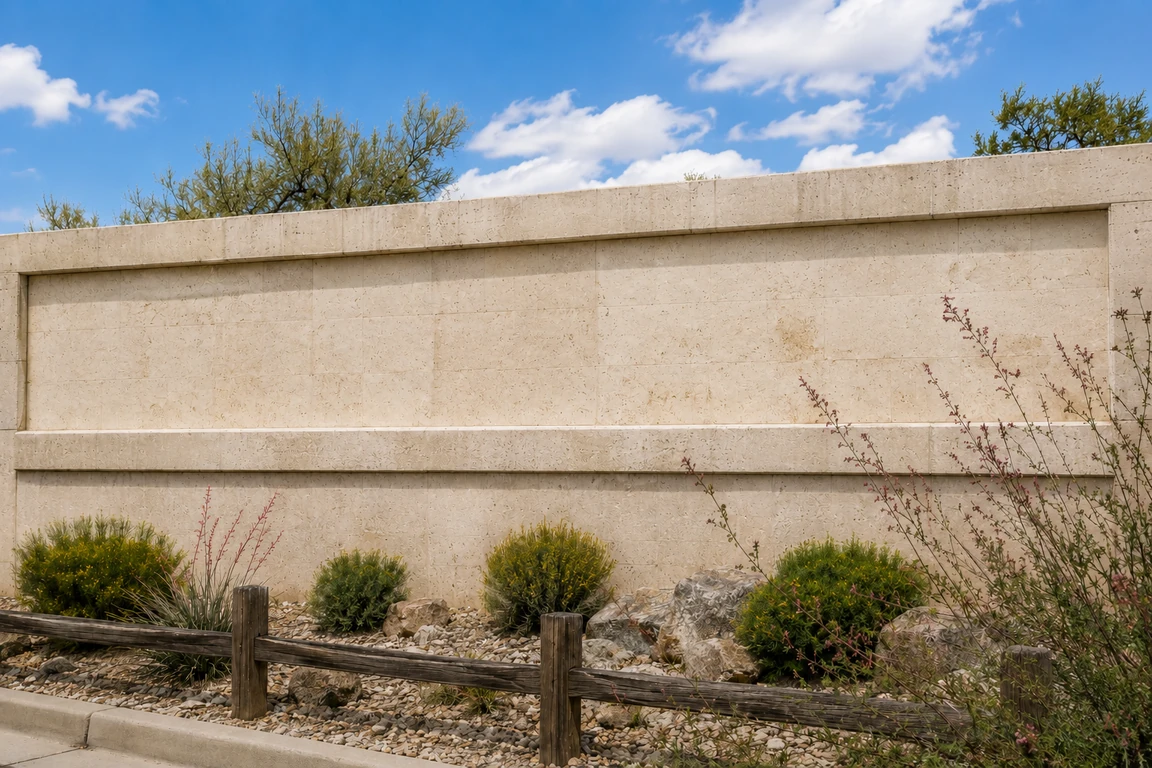
This is useful for real estate images, storefront photos, travel photos, interior design shots, and background cleanup where visible words distract from the scene.
AI Can Rebuild Fabric Folds and Curved Text Areas
Logo text on clothing is harder than a flat caption. Fabric bends, stretches, catches light, and forms shadows. When text crosses those folds, a blur or patch will usually look fake.
A good AI text remover should remove the lettering while keeping the garment believable. The fabric should still have folds, shading, ribbing, and natural shape after the text disappears.


This is the kind of case where AI reconstruction matters most. The edit should not look like someone painted over the shirt. It should look like the text was never there.
AI Can Clean Social Handles and Text Overlays
Social images often include usernames, captions, labels, or text overlays that need to be removed before reuse in a presentation, listing, thumbnail, or clean design asset.
Cropping can break the composition. Blurring draws attention to the edit. Covering the handle with a shape can look like a sticker.
AI removal can keep the portrait, wall, lighting, and surrounding background while clearing the unwanted text.
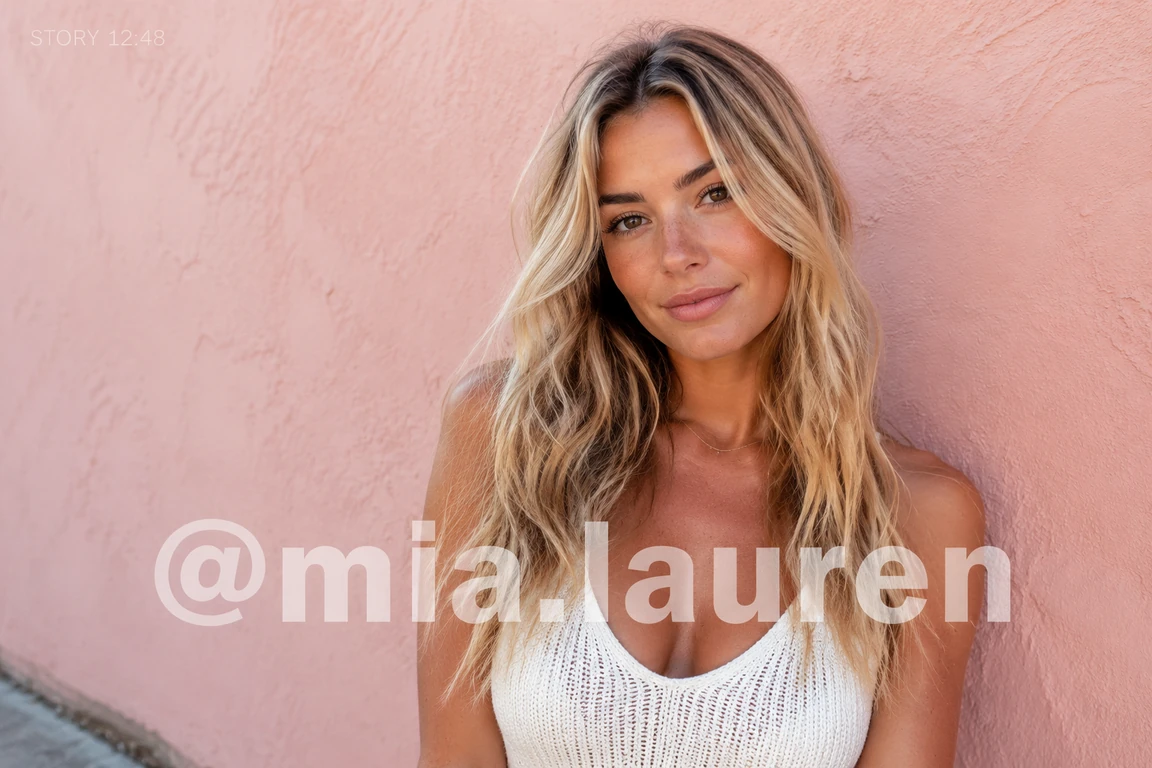

This applies to captions, subtitles, usernames, small labels, screenshot notes, and other overlays where the image itself should stay intact.
When AI Text Removal Works Best
AI text removal is strongest when the visible text is unwanted but the surrounding image should stay. It is especially useful for:
- Captions on photos or social images.
- Date stamps on older photos.
- Product label text and promotional stickers.
- Logo text on clothing or fabric.
- Wall lettering, sign text, and background words.
- Screenshot annotations or UI labels.
- Simple watermark text where the image underneath is still recoverable.
The common thread is simple: you do not want to redesign the image. You want the same image without the distracting text.
When Results Need Extra Care
Some text is harder to remove because it covers important details or repeats across the whole image.
Use extra care with:
- Dense transparent watermarks.
- Tiny text over detailed patterns.
- Text across faces, hands, hair, or product edges.
- Heavy reflections, glass, or metal.
- Text on complex screenshots where UI elements must remain exact.
- Large blocks of text that cover most of the subject.
AI can still help, but the result should be checked closely. If the text covered important content, any editor has less visible information to reconstruct from.
How to Judge a Clean Result
After removing text from a picture, check the result at the size where you plan to use it. A social post, product listing, slide, and print asset may have different quality thresholds.
A clean result should pass four checks:
- The unwanted text is gone.
- The background looks continuous.
- The main subject, product, person, or UI remains unchanged.
- There are no obvious blur patches, cover-up blocks, or ghost letters.
If the image passes those checks, the edit will usually feel natural to viewers.
AI vs Photoshop and Manual Retouching
Photoshop can remove text with tools such as Content-Aware Fill, Generative Fill, Clone Stamp, Healing Brush, masks, and manual retouching. It is a strong option when you need precise control or when the image is part of a larger design workflow.
The tradeoff is time. Manual retouching often means selecting the text area, cleaning letter edges, sampling nearby background, matching texture, and checking every small stroke.
AI text removal is better for quick cleanup when the goal is simple: remove the unwanted words and keep the photo natural. You do not need to crop, blur, paint over, or manually rebuild every letter gap.
FAQ
How do I remove text from an image?
Upload the image to an AI text remover, remove the unwanted text, review the rebuilt background, and download the cleaned image.
Can I remove text from a photo without cropping?
Yes. AI text removal keeps the original frame and removes the visible text instead of cutting away part of the photo.
Can AI remove text without blurring the image?
Yes. The goal is not to blur the words. AI removes the text and reconstructs the background behind it so the result looks natural.
Can I remove text from a picture online?
Yes. Use the AI text remover in your browser, upload the picture, remove the unwanted text, and download the cleaned result.
Can AI remove text from product labels or clothing?
Yes, these are good AI use cases when the result needs to preserve paper texture, product shape, fabric folds, shadows, or curved surfaces.
Is removing text the same as removing a watermark?
Not always. A small text watermark can be similar to other text overlays, but dense repeated watermarks are harder because they cover more of the original image.
Should I use Photoshop or AI?
Use Photoshop when you need manual control inside a design workflow. Use AI when you want to remove unwanted text quickly while keeping the image background natural.
Where can I try it?
Use the AI remove text from image tool to upload an image, remove unwanted words, and generate a clean version without cropping or blurring.